Showing posts with label apple. Show all posts

05 February 2011

ABBYY FineReader doesn't work on Snow Leopard

BED34DB6-9386-4508-A38E-5F39B3B256D4.jpg

I have a Fujitsu SnapScan S510M document scanner. It's an awesomely fast and convenient 2-sided scanner with a automatic document feeder. Hit a button and it does everything - it's my favorite peripheral connected to my Mac.

It also came with a great software bundle: Adobe Acrobat 8 for occasionally editing PDF files and ABBYY FineReader for converting scanned documents to text. I've never needed FineReader until today, however when I launched it, I received the error that the document that I'd just scanned with my SnapScan had not been scanned with a SnapScan. Typical for bundled software to only work with images that were scanned on the hardware that they were bundled with, but I'd just used the right hardware.

Turns out to be a bug with the SnapScan drivers and FineReader software. Shame on both vendors for not checking for updates regularly. Go here to download the updates.

FineReader inconveniently doesn't give you the option to install anywhere (I keep most third party apps in a separate folder) but instead installs 3 programs in the folder ABBYY FineReader for ScanSnap under Applications: Scan to Excel, Scan to Word and Scan to Searchable PDF. If you installed the previous version of FineReader anywhere else, delete it to avoid confusion after you install this update.

23 August 2010

"iPad XXX cannot be synced. The required file cannot be found."

After upgrading the OS on my iPad, I started getting the above error message during the sync process. I guess Apple can have some obscure, unhelpful error messages as well. Anyway, found a post that resolved the problem for me.

The problem is with the iPod photo cache.

Do the following:
1. Go to home folder in Finder
2. Open Pictures
3. Right click on iPhoto Library and select Show Package Contents
4. Find "iPod photo cache" file and drag to Desktop
5. Close Finder
6. Reopen iTunes and sync your iPad
7. The iPod photo cache rebuilds itself

29 November 2009

1Password, Syncing between multiple Macs, and DropBox

I use the Mac program 1Password to keep track of my passwords, software licenses, and other accounts. 1Password has hooks in all Mac browsers to autofill and save passwords and other stuff you might enter into a web page. It's also got an iPhone counterpart that it'll sync with, although syncing this info between my iPhone and Mac is a little clumsy. 1Password keeps this information in an encrypted data file, which can be shared to all your computers through a cloud-based file sharing service.

Versions of 1Password prior to the new v3 used Mobile Me to share the 1Password data file with all your computers. That support ended with v3, claiming that Mobile Me didn't work well enough. On the vendor's recommendation, I am trying the well-reviewed service DropBox, which provides 2GB of free cloud-based storage space and a Mac app.

Migrating from Mobile Me to DropBox


Follow these steps to migrate your 1Password data file from Mobile Me to DropBox.

  • Go to the DropBox website and click Download Dropbox.

    download dropbox.jpg
  • Launch DropBox and set up a new account. When you're done, it will have created a DropBox folder in your home directory. Anything copied there will also be copied to the cloud, and copied to your computers also running DropBox.

  • Quit 1Password if it's running.

  • Drag the 1Password data file from Mobile Me to your desktop.

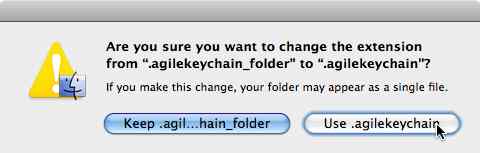
  • Rename the 1Password data file to 1Password.agilekeychain. The previous version of 1Password kept its data in a folder on Mobile Me named 1Password.agilekeychain\_folder. 1Password no longer supports that filename extension.

    When you see this warning about changing the file extension, click 'Use .agilekeychain'.
    dropbox.jpg

  • Launch 1Password and when prompted, open the 1Password.agilekeychain file on your desktop.

  • Move the data file to DropBox from 1Password's Preferences. In 1Password, go to Preferences>General and click Move...

    Move 1Password data file

  • In the Move panel, select your DropBox folder (mine is on my desktop, yours should be under your home folder) and click Move to Selected Folder.

    Move your file

  • The Preferences panel will now show DropBox as the location for your 1Password data file.

  • On your other computer, install DropBox as above.
  • Launch 1Password and, when prompted, open the 1Password data file in its DropBox folder. Now, all 1Password changes will be kept in sync between computers automatically.

  • Complete these last 2 steps on all your remaining computers.

    You're done! Enjoy having 1Password data quietly kept in sync between your computers.


30 August 2009

Snow Leopard Upgrade Notes

Got a few notes after upgrading to Snow Leopard:

My Apple mini-Bluetooth keyboard was not recognized during the reboot. I hit the sync button on the keyboard a few times with no luck. Mouse was wired, and OK of course, so I clicked through the OK buttons with my mouse until the desktop was visible. I then hit the button again on the keyboard and everything was OK.

I received the following error sometime after the OS had been up and running for a while:
The system extension "/System/Library/Extensions/CNQL4801_ClassicNotSeize.kext" was installed improperly and cannot be used. Please try reinstalling it, or contact the product's vendor for an update.

The extension is an old PowerPC format extension from Canon. Safe to delete.

I had a system message that I had old copies of my iDisk on my computer. I clicked OK to delete them, which caused the document I had docked from my remote iDisk folder to disappear (replaced by a '?'). The document is still on my iDisk so I'm not worried.

Had an alert from Mail that ODMailBundle.mailbundle is incompatible and should be deleted. I don't know what it is either, but I did delete it as instructed without incident.

Not really noticing that my iMac is faster - quite the contrary, window opening and app startup seems much slower than before. Looking forward to a reboot to see if things improve.

I hope everyone's upgrade is going well.

About Me

My photo
Brooklyn, New York, United States